

DSE Assessment: What It Involves and How to Set Up Your Workstation
By Mobile Occupational Therapist • 26 September 2026 • 13 min read
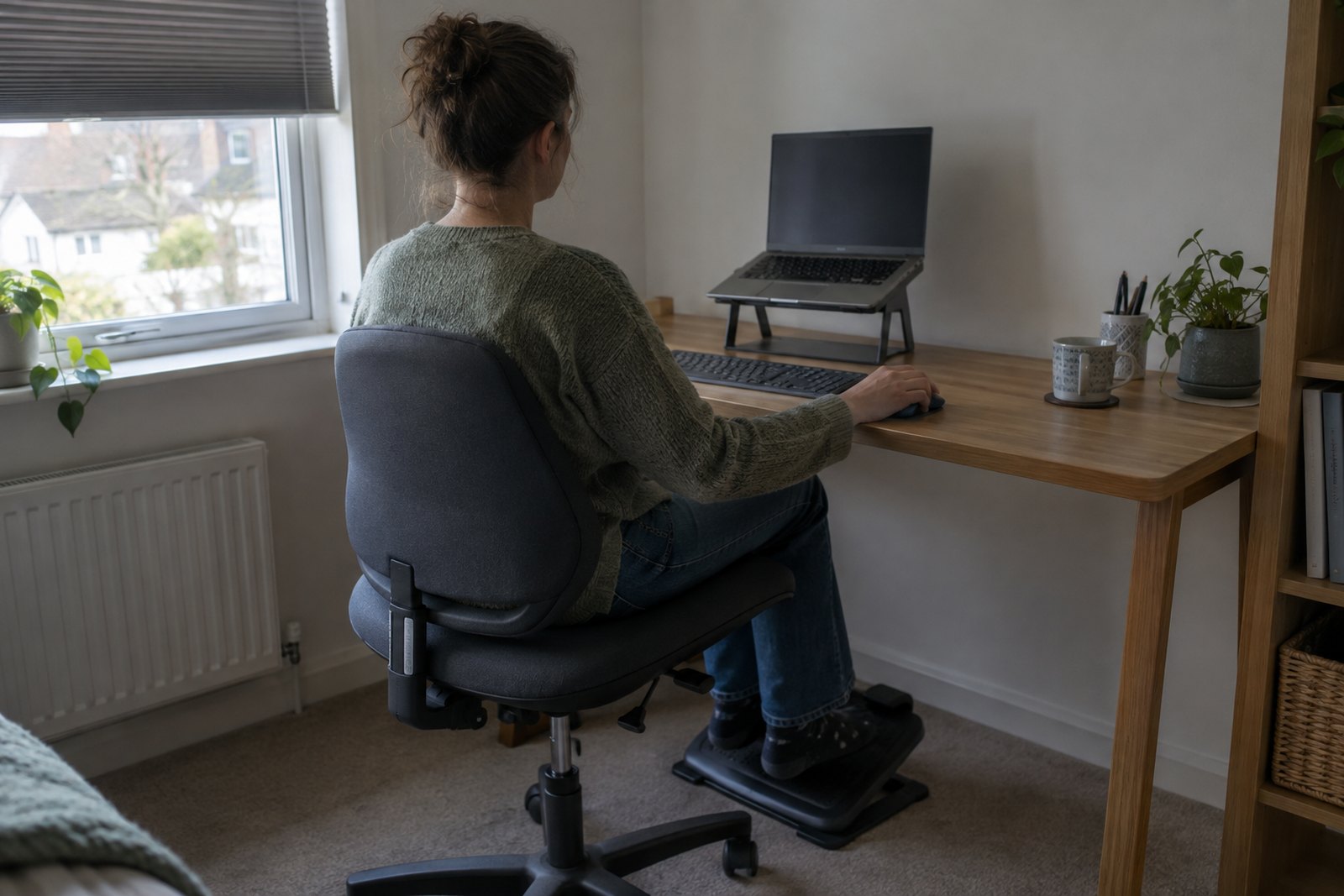
A DSE assessment is a check of the place where you use a computer, laptop, tablet or similar screen for work. DSE stands for display screen equipment. The check covers your chair, desk, screen, keyboard, mouse, lighting and how your working day is organised. The aim is to fix anything likely to cause aches, eye strain or fatigue. If you use a screen for work daily, for continuous spells of an hour or more, the law in Great Britain says your employer must assess your workstation and reduce the risks it finds.
In practice most DSE assessments are a short checklist, often filled in by you, followed by a few adjustments. For most people that is enough. It is often not enough if you already have pain, a health condition, or a brain that processes the world a bit differently. This guide covers what the law actually requires, a self check you can do at your desk today, and how to tell when you need more than a form.
What the law says, in plain terms
The rules come from the Health and Safety (Display Screen Equipment) Regulations 1992. The Health and Safety Executive (HSE) publishes the official guidance. Northern Ireland has its own, very similar regulations.
The regulations protect people HSE calls DSE users: workers who use screens daily, for continuous periods of an hour or more. That covers most office workers, call handlers, designers, administrators and plenty of people who would never describe themselves as office staff. If you are a user, your employer must:
- Assess your workstation and reduce the risks it finds. This should be repeated when something changes, such as new equipment, a move to a different desk, a change in your work, or you reporting a problem.
- Make sure the workstation meets basic requirements, such as a chair that adjusts, a screen that can be positioned properly, enough desk space and suitable lighting.
- Plan the work so you get breaks or changes of activity away from the screen.
- Arrange an eye and eyesight test if you ask for one, and pay for glasses if you need them specifically for screen work.
- Give you training and information on using your workstation safely, including how to adjust it.
A few things the law does not say. It does not set a fixed number of minutes for breaks. It does not require a particular brand of chair or an expensive desk. And it does not require a specific qualification for whoever does the assessment, only that they are competent to do it. Check the HSE pages listed with this article for the current detail.
Eye tests and glasses
If you are a DSE user, you can ask your employer to arrange and pay for an eye test by an optometrist or doctor. If that test shows you need glasses specifically for screen work, your employer has to pay for a basic pair. They do not have to pay if your normal glasses already work for the screen, and they do not have to fund designer frames. Many employers handle this through a voucher arrangement, so ask your manager or HR. Screen work is not known to damage eyes permanently, but it can make tired eyes, headaches and existing sight problems more noticeable.
Working from home
HSE's guidance is that employers have the same health and safety responsibilities for home workers as for anyone else, and that DSE assessment applies to people who use screens at home on a long-term basis, including those who split time between home and office. In practice this often means a self-assessment checklist and equipment provided or loaned by the employer. HSE's working from home pages set out the current position.
A self check: setting up your workstation
Do this in order. The chair comes first, because everything else is positioned around where your body ends up.
Chair
- Sit right back so your lower back is supported. If the backrest does not meet the curve of your lower back, adjust its height, or use a small cushion or rolled towel.
- Set the seat height so your forearms are roughly level with the desk when your shoulders are relaxed and your elbows are by your sides.
- Now check your feet. They should rest flat on the floor. If raising the seat has left them dangling, use a footrest. A sturdy box or a stack of firm books will do for now.
- Your thighs should be roughly level, with a small gap between the front of the seat and the back of your knees.
- If the armrests stop you getting close to the desk, lower them or take them off.
Keyboard
- Put it directly in front of you, with the letters part of the keyboard (not the number pad) lined up with your body.
- Leave a little space in front of it so you can rest your hands when you are not typing.
- Keep your wrists fairly straight. Type with a light touch rather than hammering the keys.
- Many keyboards have little legs at the back. Some people find typing flatter is easier on the wrists. Try both.
Mouse
- Keep it right beside the keyboard, close enough that your upper arm stays by your side. Reaching out to a mouse all day is a common cause of shoulder and neck ache.
- Move it with your whole arm rather than flicking your wrist.
- Learn a few keyboard shortcuts. Less mousing means less strain.
Screen
- Place it roughly an arm's length away, directly in front of you.
- The top of the screen should be at or a little below eye level. If you wear varifocals or bifocals, you may need it lower still so you are not tipping your head back.
- With two screens used equally, put the join in front of you. If one is your main screen, put that one in front and the second to the side.
- Increase text size rather than leaning in.
Lighting and glare
- Try to sit side-on to windows rather than facing them or with your back to them.
- Use blinds to cut glare. Tilt the screen slightly to lose reflections from ceiling lights.
- Adjust brightness to match the room. A very bright screen in a dim room is hard work on the eyes.
Phone, paperwork and everything else
- If you take many calls, a headset beats clamping a phone between ear and shoulder.
- Keep things you use often within easy reach. Things you use rarely can live further away, which also gets you up now and then.
- If you copy from paper, a document holder beside or below the screen saves twisting your neck.
Laptops, tablets and the kitchen table
Laptops
A laptop is a compromise by design. If the screen is at the right height, the keyboard is too high. If the keyboard is right, you are looking down at the screen. For short spells this is fine. For a full working day, HSE's guidance is to use a separate keyboard and mouse and to raise the laptop so the screen is at a comfortable height, with a laptop stand or, at a push, a stable pile of books. Alternatively, plug the laptop into a separate monitor.
Tablets and phones
These are not designed for long typing sessions. If your job involves a lot of work on a tablet, a stand and a separate keyboard make a real difference, and your employer's assessment should cover it.
The kitchen table problem
Many home workers end up at a dining table on a dining chair. Tables are often too high for typing and dining chairs give little back support. If that is where you work:
- Raise yourself with a firm cushion so your forearms are level with the table, then put something under your feet.
- Add back support with a cushion or rolled towel.
- Use a separate keyboard and mouse with a raised laptop.
- Avoid working from the sofa or bed for long periods. It is comfortable for half an hour and miserable by the afternoon.
If you are working at home long term and this is the best you can manage, tell your employer. That is exactly what the assessment is for.
Sit-stand desks
Being able to change position helps many people. The point is to change, though. Standing all day brings its own aches. If you use one, alternate through the day and apply the same rules: screen at the right height, keyboard at elbow height, mouse close.
Breaks: the cheapest fix there is
HSE's guidance is that short, frequent breaks are better than longer, less frequent ones. A break does not have to mean stopping work. It can mean phoning someone instead of emailing, standing to read a document, or walking to the printer. What matters is moving and giving your eyes something else to look at.
- Look away from the screen at something in the distance every so often.
- Blink. People blink less when concentrating on a screen, which is one reason eyes feel dry by the end of the day.
- Stand up and move around at least every hour. Set a reminder if you get absorbed.
- Eat lunch away from the desk. Your employer's plans for breaks should make this possible.
When a standard DSE check is not enough
A checklist assumes a fairly typical body doing fairly typical work. It falls short when:
- You have pain that does not settle after sensible changes, or that is getting worse.
- You have a health condition such as arthritis, hypermobility, multiple sclerosis, a back or neck condition, chronic fatigue, or effects from a stroke or brain injury. Our guide to arthritis and joint protection covers the hands in more detail.
- You are neurodivergent. For many autistic people, and people with ADHD, dyslexia or dyspraxia, the problem is not the chair. It is noise, flickering lights, visual clutter, open-plan distractions, hard-to-read screens, or the organisation of the work itself. See our guide to occupational therapy and ADHD for examples.
- You have sight or hearing loss that standard settings do not account for.
- You are returning after illness, injury or surgery and need to build up gradually. Our guide to getting back to work after illness or injury explains how that can be planned.
If you are disabled, your employer also has a duty to make reasonable adjustments, which can go well beyond standard DSE equipment. In England, Scotland and Wales this comes from the Equality Act 2010, and in Northern Ireland from the Disability Discrimination Act 1995. In England, Scotland and Wales, the government's Access to Work scheme may help pay for workplace assessments and equipment for people with a disability or health condition. Check eligibility on GOV.UK.
When to see someone else first
Workstation changes are not a treatment. See your GP if you have numbness, tingling or weakness in your hands or arms, pain that wakes you at night, or pain that is spreading or getting steadily worse. A physiotherapist is the right person to assess and treat most muscle and joint pain, and many areas allow self-referral to NHS physiotherapy. An optometrist is the right person for eye strain, headaches linked to screen work or changes in your sight. Call 999 for sudden weakness or numbness on one side, slurred speech or chest pain. Many larger employers also have an occupational health service, which is a good first step if you have one.
Where an occupational therapist fits
An occupational therapist looks at the whole picture: your body, your health, the tasks your job involves and the environment you do them in. A standard DSE check asks whether your chair adjusts. An occupational therapist asks why your shoulder hurts by 11am, what you actually do all day, and what would make it manageable.
A specialist workplace or workstation assessment by an occupational therapist might involve:
- Watching how you work, at home or in the workplace, rather than relying on a checklist.
- Matching equipment to your needs, such as a particular type of chair, keyboard or mouse, voice recognition or screen-reading software.
- Looking at fatigue, pacing and how the working day is structured, which matters a great deal for conditions like MS, long-term fatigue or recovery from illness.
- For neurodivergent people, looking at lighting, noise, workspace layout, routines, planning and how tasks are presented.
- Writing a clear report with practical recommendations, which can support conversations about reasonable adjustments or an Access to Work application.
An occupational therapist does not replace your GP, a physiotherapist treating pain, or an optometrist. If the assessment points to a medical problem, they should say so and send you back to the right person. Our work and ergonomics page explains how this kind of assessment works. If you are paying privately, it is worth checking the therapist is registered with the HCPC.
Frequently asked questions
Is a DSE assessment a legal requirement?
Yes, for workers who count as DSE users, meaning people who use screens daily for continuous spells of an hour or more. Employers must assess their workstations and reduce the risks. The rules come from the Health and Safety (Display Screen Equipment) Regulations 1992, and HSE's website has the current guidance.
Does my employer have to pay for my glasses?
Only if an eye test shows you need glasses specifically for screen work, and then only for a basic pair. Your employer must arrange and pay for the eye test if you are a DSE user and you ask for one.
Does a DSE assessment apply if I work from home?
HSE's guidance is that it applies to people who work at home on a long-term basis, including hybrid workers. It is often done as a self-assessment. If your home setup is causing problems, tell your employer, because they have the same duties as they would in the office.
Who can carry out a DSE assessment?
The law does not require a particular qualification, only that the person is competent. Many employers train a member of staff, use a self-assessment form, or bring in an outside assessor. For complex needs, such as pain, a health condition or neurodivergence, a specialist such as an occupational therapist is often more useful.
How often should a DSE assessment be done?
There is no fixed interval. It should be reviewed whenever something significant changes, such as new equipment, a new workspace, different work, or you reporting discomfort or a change in your health.
Can I ask for a specialist assessment if I have a health condition?
You can ask, and if you are disabled your employer must consider reasonable adjustments. Some employers arrange a specialist assessment through occupational health. You may also be able to get help through Access to Work, or arrange a private assessment yourself and share the report with your employer.
Next steps
If the checklist has not solved the problem, see our work and ergonomics assessment page or our functional assessments and reports page, check current guide prices, and choose your area below.

Talk to an occupational therapist near you
This guide is general information. For advice about your own situation - or someone you look after - a local occupational therapist can visit you at home and see it for themselves.
Choose your area: